Sometimes, when contacting our Customer Support Team, you may be asked to take a screenshot and share it to speed up the resolution process. For example, checking your Dynamic DNS router settings or Mail client settings.
In this article, we will describe the process of taking screenshots on different devices and operating systems (OS), such as:
Windows
In Windows, there are several ways to take a screenshot:
1. Using the Snippet Tool
- Select the Start button (Win button) and enter Snippet Tool in the search bar:
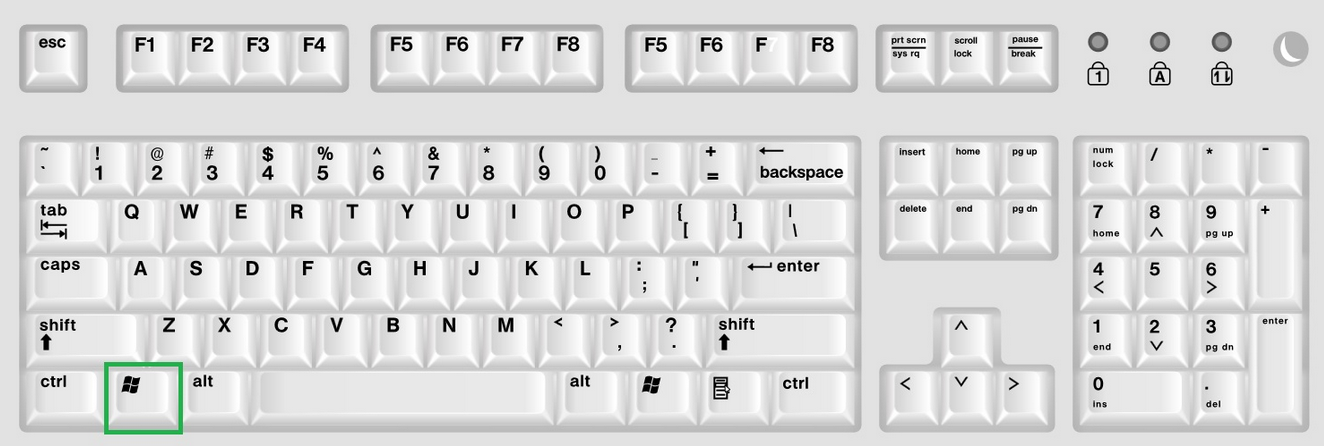
- Select the Snippet Tool from the drop-down:

- Click on the Left Mouse button and choose the area you would like to capture.
- Save the image as a picture.
2. Using the Print Screen
- Locate and click the PrtScr button (it is usually located on the right-hand side of a standard keyboard; just above the Insert, Home and Page Up keys). However, if you have a laptop, the PrtScr button can be hard to locate so look at the very top right of your keypad:
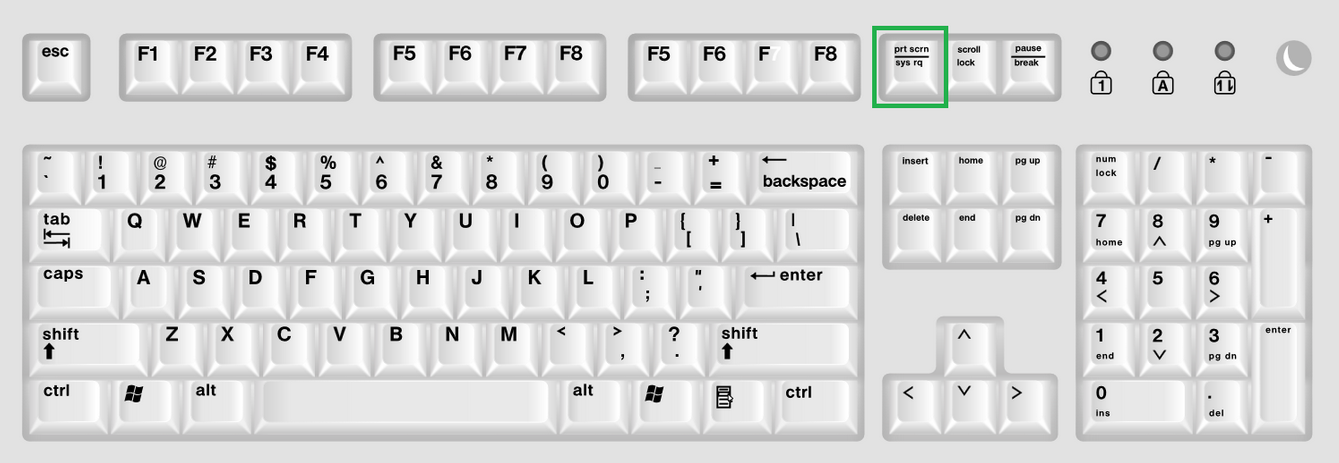 PLEASE NOTE: In case you are using a laptop, you need to hold the Fn (function) button before pressing PrtScr.
- Once clicked, the screenshot is copied to the clipboard. Now, click on the Win and enter Paint:
- Select Paint from the search results and paste the screenshot by typing in the keyboard combination Ctrl + V:

- Save the image:
MacOS
If you are a MacOS user, the following screenshot options are available for you:
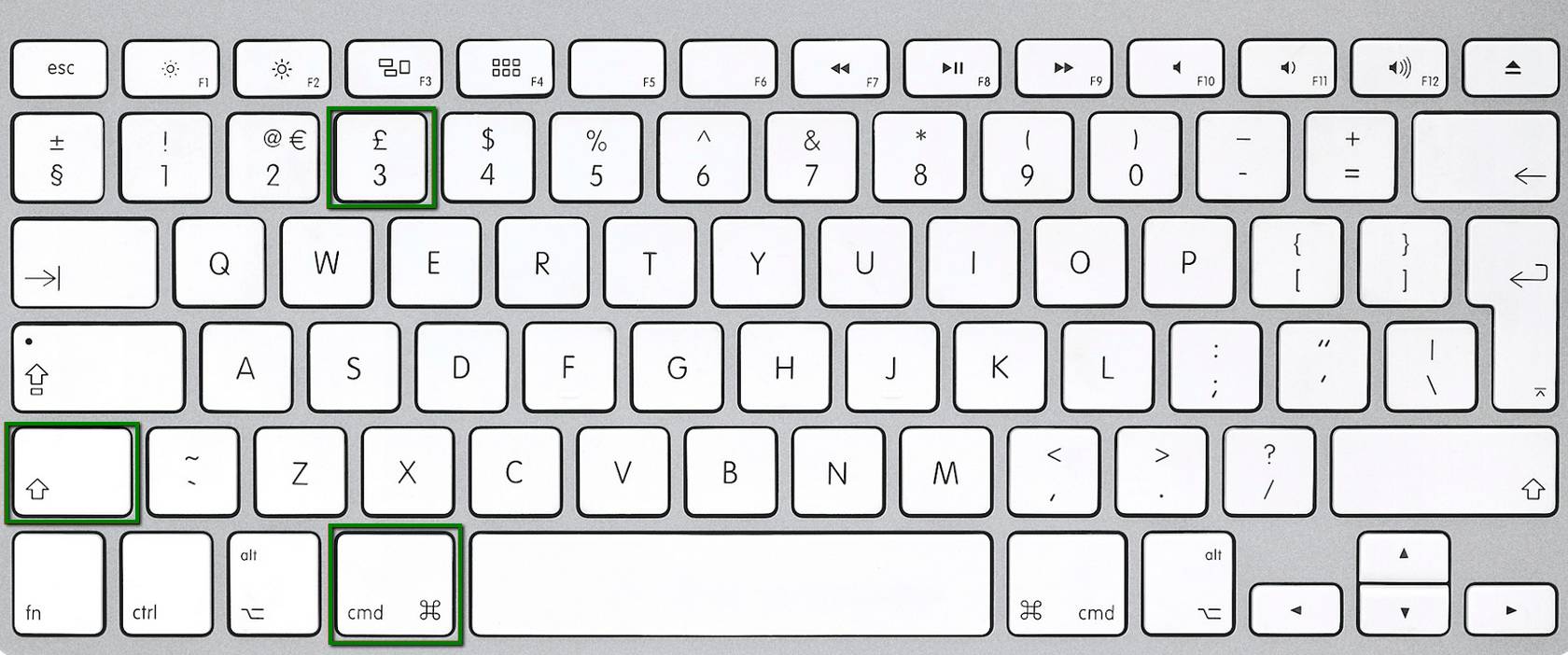
- Type in the following keyboard combination: Shift + Command + 3. Once clicked, the screenshot will appear on your desktop:
2. Capture a part of the screen
- Press Shift + Command + 4. This will turn your cursor into a crosshair:
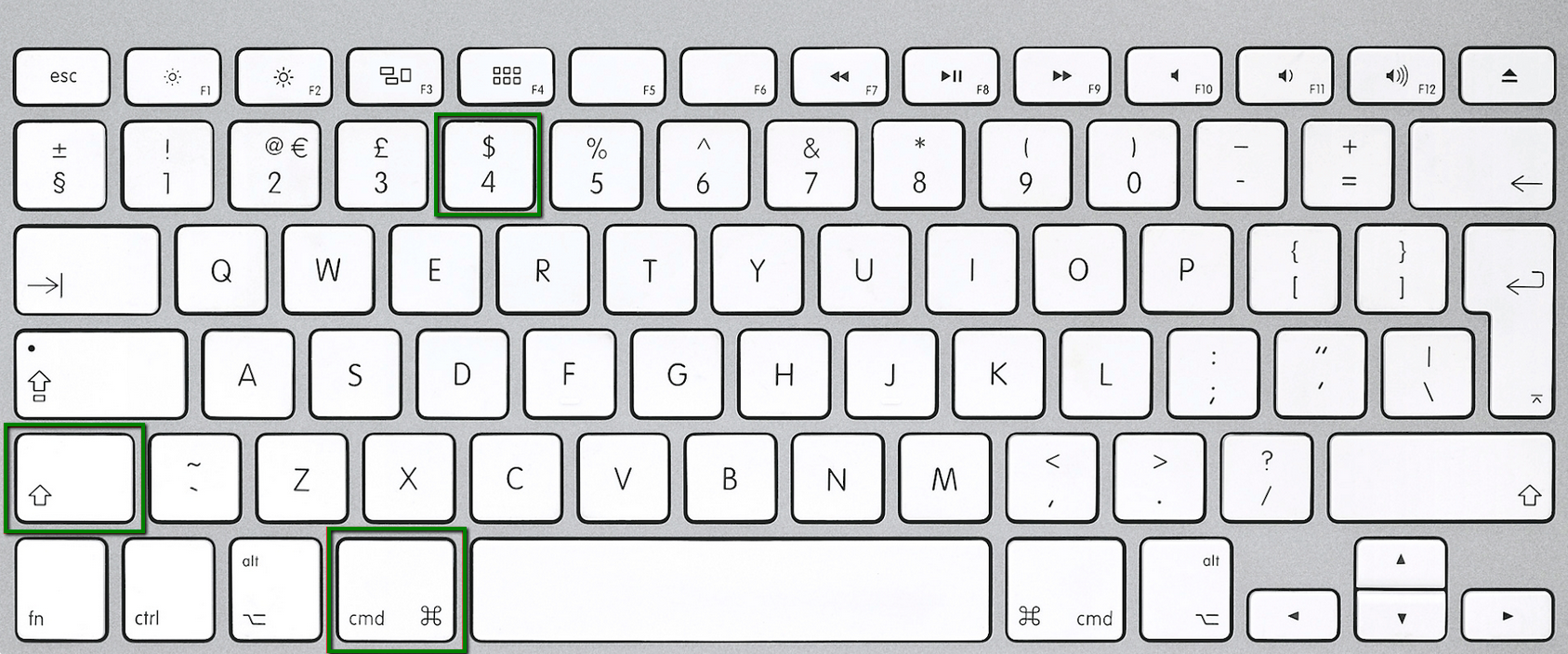
- Move it to where you would like to start your screenshot.
- Drag the cursor to capture the required section of the screen.
- Once the needed area is selected, release the trackpad or mouse. The screenshot will be saved on your desktop.
- Press Shift + Command + 4. Then press the Spacebar. This will change the crosshair into the camera:
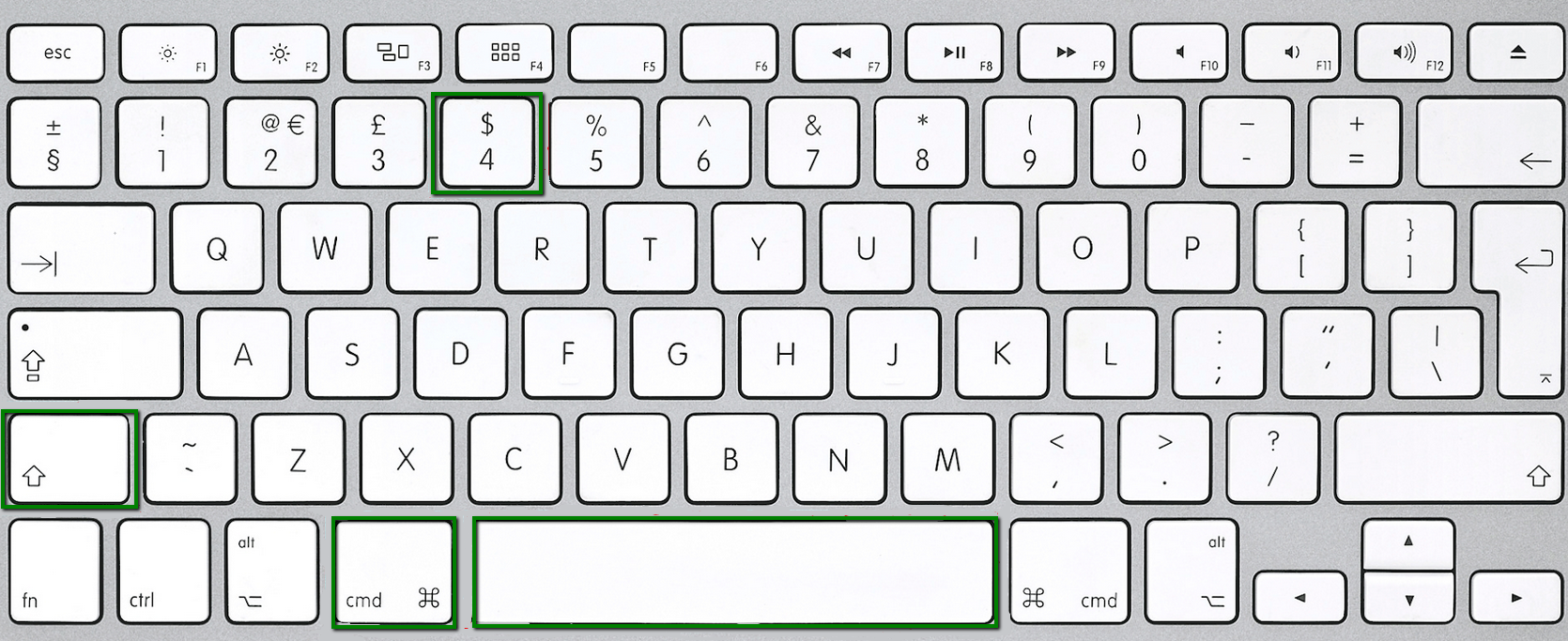
- Move the camera over the window you would like to capture. Please make sure that the window is highlighted.
- Click on your mouse or trackpad to take a screenshot.
- After that, the image will appear on your desktop.
PLEASE NOTE: When automatically saving your screenshot, your Mac uses the name "Screen Shot date at time.png".
Android
If you are using a mobile device and you need to capture your screen to share it, please use one of the following combinations:
- For the Android phones that do not have a physical Home button, please hold for 1-2 seconds the following buttons: [ Volume down + Power ].
The screen should flash or somehow indicate the succession of the action. Your device will capture the whole screen and save it as a photo.
- For devices that have a physical Home button, the following combination should be used: [Home + Power].
Once the screenshot is made, you can find the image in your Gallery or Photos app.
- If none of the variants are applicable for you, you can download and install the specific app for taking screenshots. Most of them are free and include all the necessary features to create and share screenshots.
iOS
1. Taking screenshots on iPhones X, XS or XR
- Hold down the Sleep/Wake button.
- After that, press the Volume Up button.
The screen of your device will flash and the captured image will be saved as a photo on your device.
2. Taking screenshots on iPhones SE, iPhone 1-8, iPad and iPad Touch
For iPhones SE, iPhone 1-8, iPad and iPad Touch, the process is slightly different and you need to follow these steps to capture the screen:
- Hold down the Sleep/Wake button.
- After that press the Home button.
How to find the Sleep/Wake button:
It is that isolated button, which is either at the top (e.g., iPhone iPhone 5, 5s, SE) or on the right side (e.g., iPhone 7, 8, X).
How to share the screenshot
- Send the captured image via email
- Use Paste.PIcs or any similar online tool
Nowadays there are plenty of cloud storage services that allow you to take a screenshot and share it with others. If you would like to share the screenshot in this way, we advise using paste.pics or similar tools.
If you want to know how to share screenshots via paste.pics, please follow these steps:
- Enter https://www.paste.pics.com/ into your web browser.
- Drag and drop the necessary image from your computer folder into the Browse button or click on it to choose the file on your local computer.
- Once the image is uploaded, it will take you to a page where it will provide you a url that you can provide to others.
- Alternatively, you may click Edit screenshot to customize the image. For example you are able to add a arrow to the image.
- To save any changes you made to screenshot you can click on the green check mark on the top left corner.
- Share using Google Drive
Google Drive is a file storage service that allows to download/upload files to the server, share it with others and supports a range of collaborative tools.
- Go to your Google Drive at: https://drive.google.com/drive/my-drive
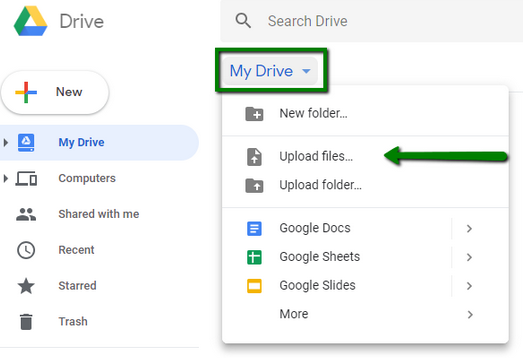
- Once in, you can either drag-and-drop the image to your drive or choose the corresponding option to upload the image:
- Find the image and click on it with your left mouse button.
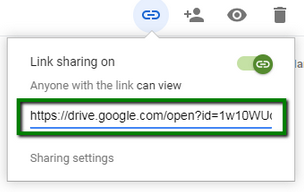
- At the top right, click on Get shareable link:
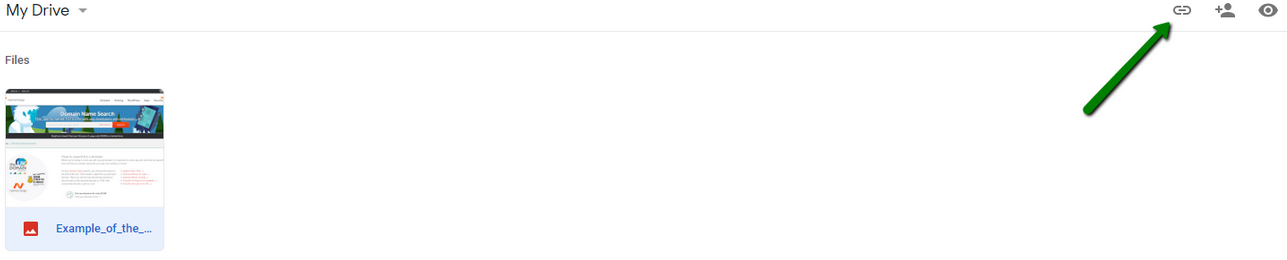
- Once the link appears, copy and paste it into the chat window: