
Symlinks, short for symbolic links, are basically shortcuts to individual files or folders. One of the advantages of a symlink is that it can cross filesystems, as it references abstract filenames/directories and not physical locations.
There is a number of ways to create a symlink in cPanel:
1. You can create a symlink via SSH or through the Terminal in cPanel by running the following command:
ln -s /path/to/target /path/to/shortcut
2. It can also be created via a cronjob using the same command: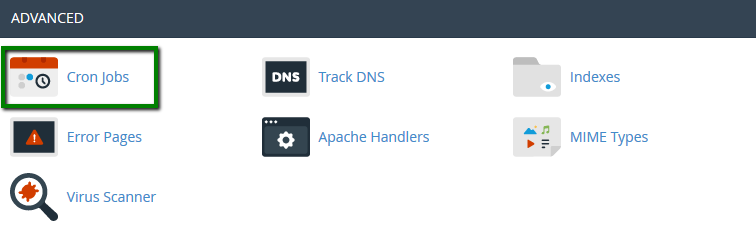

NOTE: Make sure that you delete the cronjob once the symlink has been created.
3. You can also create a symlink using the PHP function.
The example of the script can be found below:
<?php
$target = '/home/cPanelusername/public_html/index.html';
$shortcut = 'script.html';
symlink($target, $shortcut);
?>
Just run this PHP file in the browser and it will create symlink right away.
Example of the symlink usage
A symlink may be a perfect solution for a number of cases. In our example we will use a symlink in order to use images located in the main domain web root (/public_html/) for the addon domain website (/public_html/domain1.com):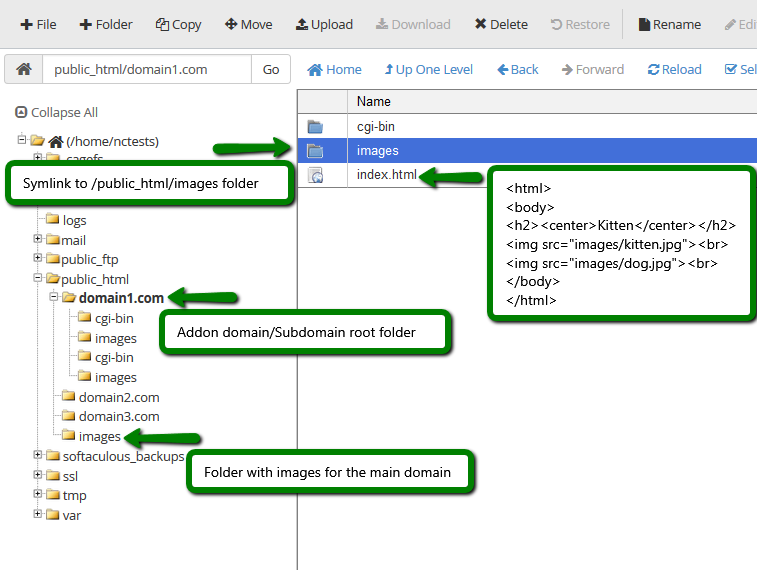
Since the addon domain website does not have access to /public_html or any higher level directory, the only way to use images located in the /public_html/images folder is to create a symlink in the addon domain folder:
ln -s /home/ncexample/public_html/images/ /home/ncexample/public_html/domain1.com/images
As you can see, symlinks will help you to avoid duplicate content if you use the same files for multiple websites.
NOTE: Creating symlinks to root directories of other websites may cause serious security breaches, that's why we highly recommend using symlinks only for those folders that do not expose any config or system files, as, if acquired, such files may be used for hacking or other malicious activity.
Getting started · Let.com knowledge base
How to create a symbolic link in cPanel
Hosting documentation. Account access is coming soon. Always use the server details and nameservers assigned to your own account.
Did this point you in the right direction?Talk to the Let.com team 

What is a symbolic link?
A symbolic link is a shortcut to a file or directory. The guide illustrates sharing an image directory between websites without duplicating those images.
Which methods does this guide use to create a link?
It includes SSH or cPanel Terminal, a temporary cron job and a PHP example. Each method requires the intended target and shortcut paths.
What should I consider before linking another website’s folder?
The article warns against exposing configuration or system files through a link. Its example uses an image folder, and it advises limiting links to content that does not expose sensitive files.