WordPress · Let.com knowledge base

Basics of "Plugins" in WordPress

Updated 2024-08-223 min read

Hosting reference guide. Screenshots may show earlier interfaces. Account access is coming soon. Confirm current menus, server details and nameservers for your account.

 Plugins are PHP scripts that offer custom functions and features so that each user can tailor their site to their specific needs. Plugins can make everything from small tweaks to massive changes to your site. For example, some plugins can even turn your WordPress site into a fully functioning eCommerce store, social network, or forum. Some can even turn the WordPress builder in to a drag and drop builder making it easier to build a for those who are new to creating websites. 


Where to Find WordPress Plugins

One of the easiest ways to find plugins is to search for them in the WordPress dashboard under Plugins option. Each plugin listed there is available for to be installed into the WordPress. You can also find plugins through the WordPress Plugin Directory, in here they are available to for download as a zip file that you can upload to your WordPress site.  


Installing Plugins 

There are 3 common ways to install WordPress plugins and we will go over each of them below. We will also going to use the plugin Elementor as the example for each method. 


Automatic Plugin Installation

This is the simplest method of installing a plugin. To add a plugin using the built-in plugin installer:

  1. Log into your WordPress Dashboard
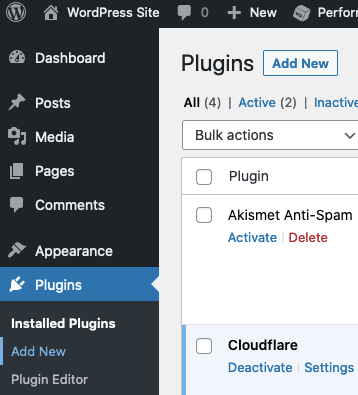
  2. Go to Plugins > Add New.
    Guide illustration for Automatic Plugin Installation: Go to Plugins > Add New
  3. Use the search tool in the top-right to search through the plugin database.
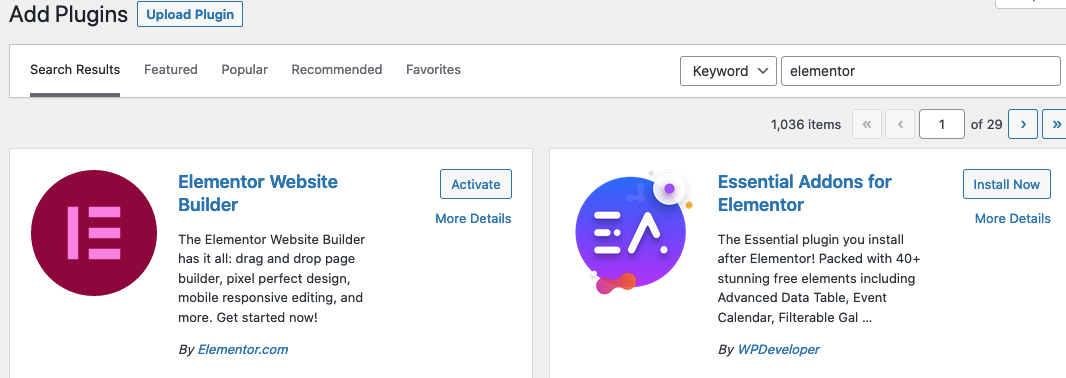
    Guide illustration for Automatic Plugin Installation: Use the search tool in the top-right to search through the plugin database
  4. On the search results that appear, click a plugin’s title to read more about it. This page may contain installation notes, plugin documentation or other useful information.
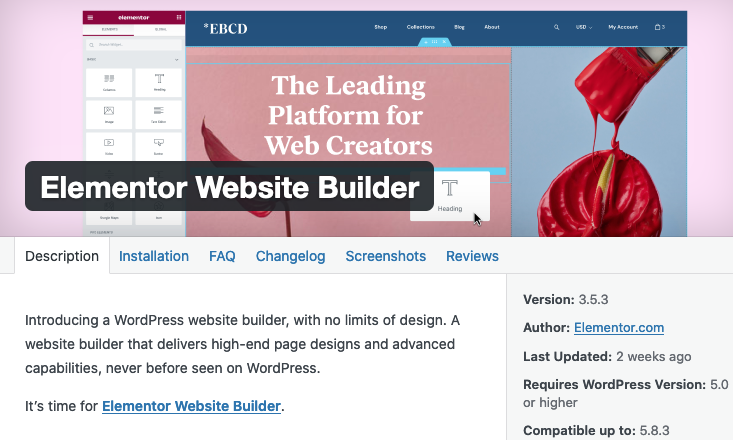
    Guide illustration for Automatic Plugin Installation
  5. Click the Install Now button to install the plugin.
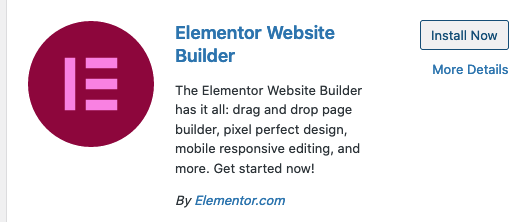
    Guide illustration for Automatic Plugin Installation: Click the Install Now button to install the plugin
  6. Click Activate to activate the plugin.
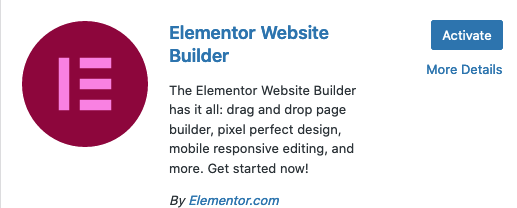
    Guide illustration for Automatic Plugin Installation: Click Activate to activate the plugin


Manual Upload via WordPress Dashboard

If you have a copy of the plugin as a zip file, you can manually upload it and install it through the Plugins admin screen.

  1. Navigate to Plugins > Add New.
    Guide illustration for Manual Upload via WordPress Dashboard: Navigate to Plugins > Add New
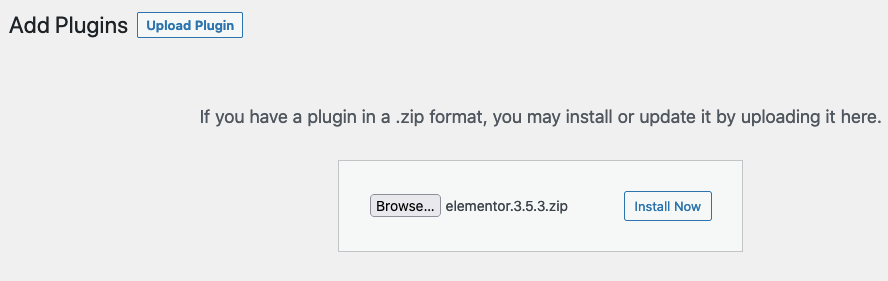
  2. Click the Upload Plugin button at the top of the screen.
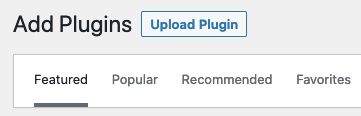
    Guide illustration for Manual Upload via WordPress Dashboard: Click the Upload Plugin button at the top of the screen
  3. Click on Browse and select the zip file from your local computer
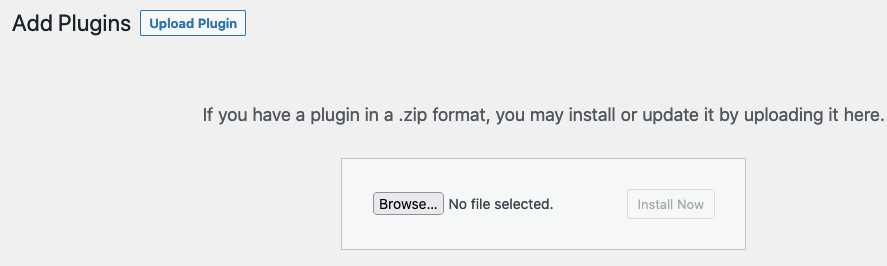
    Guide illustration for Manual Upload via WordPress Dashboard: Click on Browse and select the zip file from your local computer
  4. Click the Install Now button.
    Guide illustration for Manual Upload via WordPress Dashboard: Click the Install Now button
  5. When installation is complete, you’ll see “Plugin installed successfully.” Click the Activate Plugin button at the bottom of the page.
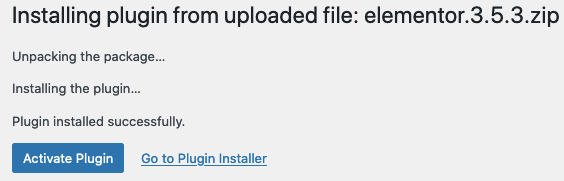
    Guide illustration for Manual Upload via WordPress Dashboard: When installation is complete, you’ll see “Plugin installed successfully.” Click the Activate Plugin…

Manual Plugin Installation

. In some cases, you may need to manually upload a plugin directly through the file manager.

  1. Log into the cPanel
  2. Under The "Files" section click File Manager
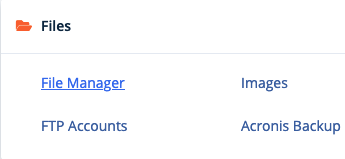
    Guide illustration for Manual Plugin Installation: Under The "Files" section click File Manager
  3. From the File Manager go to the domain directory folder. For the primary domain of the hosting package the domain directory will be the public_html folder.
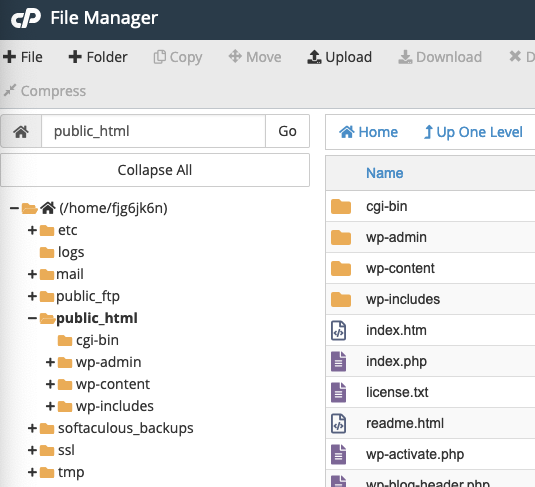
    Guide illustration for Manual Plugin Installation
  4. From this directory go into the wp-content folder and then into the plugins folder
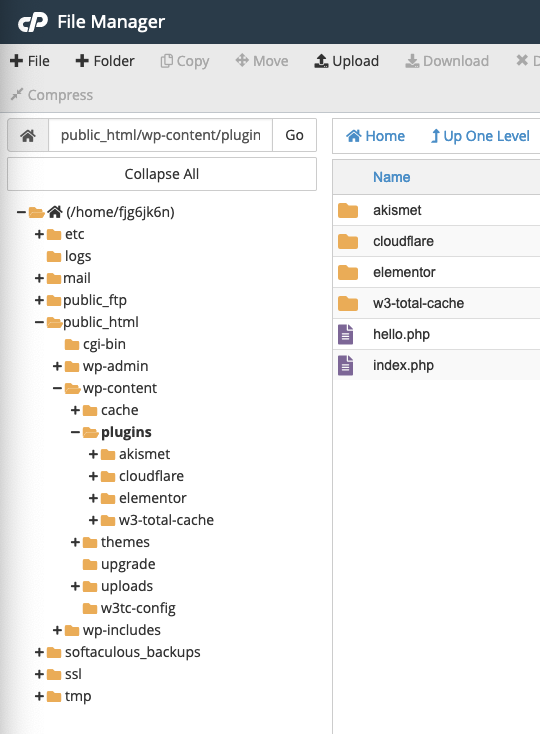
    Guide illustration for Manual Plugin Installation: From this directory go into the wp-content folder and then into the plugins folder
  5. Once in inside the plugins folder click on Upload which can be found in the top tool bar. 
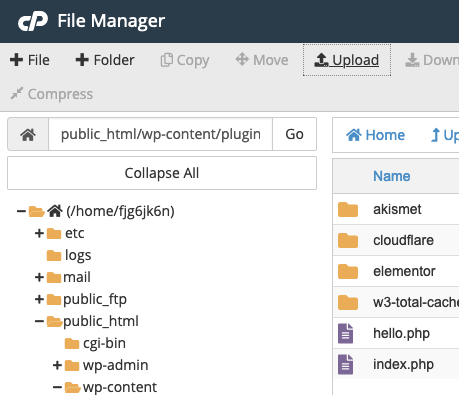
    Guide illustration for Manual Plugin Installation: Once in inside the plugins folder click on Upload which can be found in the top tool bar
  6. Drag the plugin file into the page or click Select File to browse your local computer for the file
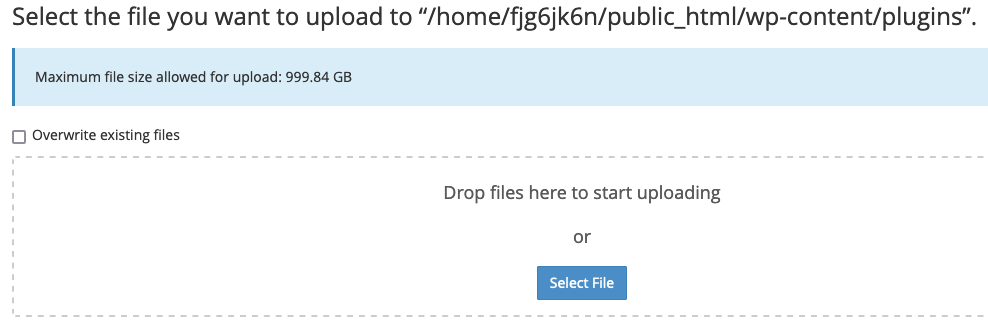
    Guide illustration for Manual Plugin Installation: Drag the plugin file into the page or click Select File to browse your local computer for the file
  7. Once the upload is completed click on the Go back link 
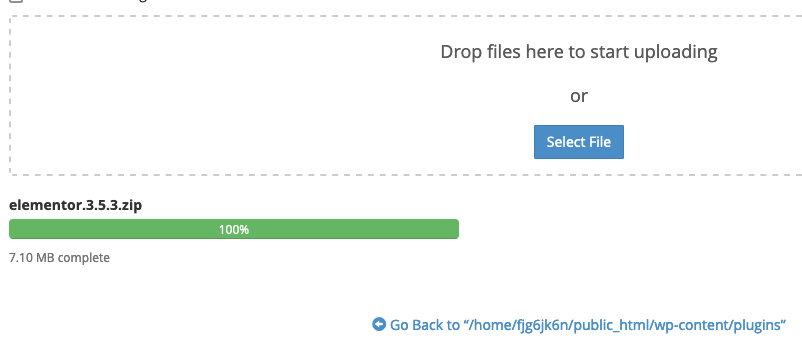
    Guide illustration for Manual Plugin Installation: Once the upload is completed click on the Go back link
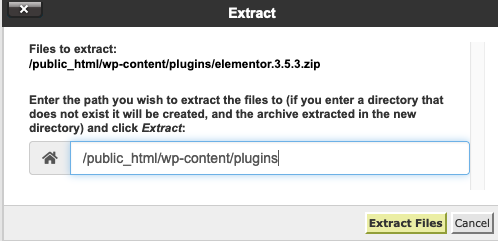
  8. The file will now display under the plugins folder. Right click it and select extract 
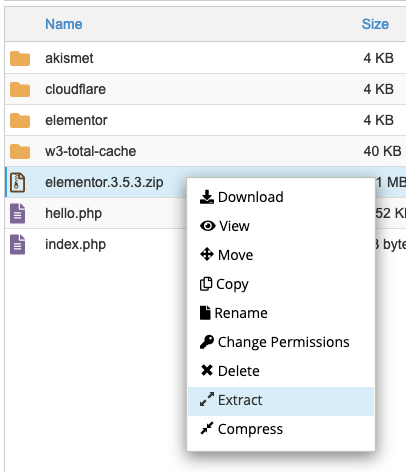
    Guide illustration for Manual Plugin Installation: The file will now display under the plugins folder. Right click it and select extract
  9.  From the pop up click Extract Files
    Guide illustration for Manual Plugin Installation: From the pop up click Extract Files
  10. Once completed it will display a new folder for the plugin 
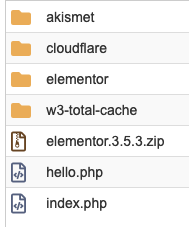
    Guide illustration for Manual Plugin Installation: Once completed it will display a new folder for the plugin
  11. Now when you go back to your dashboard and in the list of plugins you will now see it displayed there. 
Did this point you in the right direction?

Talk to the Let.com team

Frequently asked questions

What you need to know.

Get support

What does a WordPress plugin add?

Plugins add functions or features to a WordPress site, from small changes to larger capabilities such as a store, forum or page builder.

How do I install a plugin from the dashboard?

Open Plugins, choose Add New, find the plugin and select Install Now. Activate the plugin after installation to enable its functionality.

What if I already have a plugin ZIP file?

The guide covers uploading the ZIP through the dashboard and a separate manual method using the site’s wp-content/plugins directory in cPanel File Manager. Follow the complete method that matches your access.

Let.com

Coming soon.

Account sign-up, log-in and checkout are not available yet. You can explore our products and compare plans while we get everything ready.

Compare plans