

NOTE: This is a tutorial for third party software, so it is a bit outside our scope of support. For more information you should check out the official WISECP documentation at: https://docs.wisecp.com/en/kb/welcome-to-the-usage-guide
Get a license:
https://www.wisecp.com/en/pricing for full list
https://my.wisecp.com/en/free-license/92 for free (up to 25 accounts)
For more information check out the Getting Started guide at WiseCP Getting Started Guide
Installation
The process for setting up WiseCP is very fast and easy.
-
Download File for Setup
The setup file can be downloaded in the my.wisecp.com client area > license detail and upload the files in the compressed file to your site via FTP.
Select .zip file to upload in your public_html folder or the main directory for your domain where you will install WiseCP. Extract .zip file.
-
Create Database
- Login to cPanel
- Click MySQL Databases
- Enter new database name, assign database user, and remember password for later.
Run Setup Wizard
Enter https://yourdomain.com/install.php in a browser to begin the "Setup Wizard". The setup wizard will walk you through easily installing WiseCP.
-
System Requirements
The Setup wizard will check that the server meets the requirements for installation. If all requirements are met you will automatically proceed to the next step.
You can download a PHP file that will check that your system meets the current requires for WiseCP: Download Requirements
-
Database Information
Enter the database information you have saved from above. If there are no issues you will see the "Setup Completed Successfully" page. -
Setup Completed Successfully
If you make it to this step the setup has successfully completed. You will see the default login information displayed. By default, your admin email address is the email address registered in your my.wisecp.com client account. Your default admin password is admin123
Shared Server Settings
To add your Reseller server:
- Go to Admin Area > Services > Hosting Management > Server Settings
- Click on the button Add new server
On the following package, make sure these are correct:
Hostname: Enter cPanel IP address or server name (r#.directdns.com)
The hostname for your shared server. It is usually the name given in the form of r#.directdns.com.
Name Server Address
You must define the NS information linked to your server. In most cases this would be ns1.directdns.com and ns2.directdns.com
Server Automation Type
Select cPanel
IP Address: Enter cPanel IP address
User name: Reseller cPanel/WHM username
Password: Reseller cPanel/WHM password
Port: 2086 for non SSL or 2087 for SSL
Test Connectivity
Please test the information you have entered. You cannot add a server without the test displaying "Success".
Once all the info is correct and you can test connectivity with Success, click on "Add New Server"
Assigning A Server to Product Packages
- Navigate to Admin Area > Services > Hosting Management > Hosting Packages
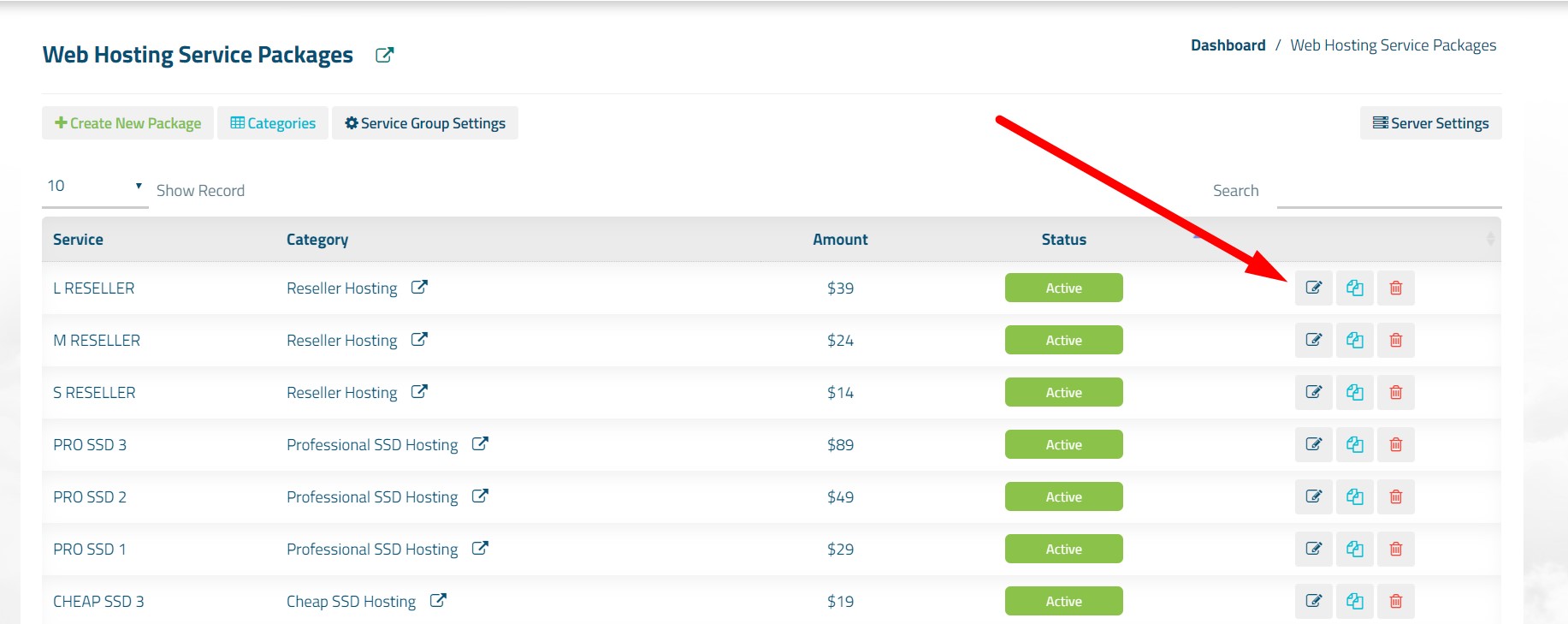
- On the page that opens, click the edit button for any of the available product packages. If there is no existing package, click the "Create New Package" button.
- Click the "Core" tab and define your server selection from the "Server" field.
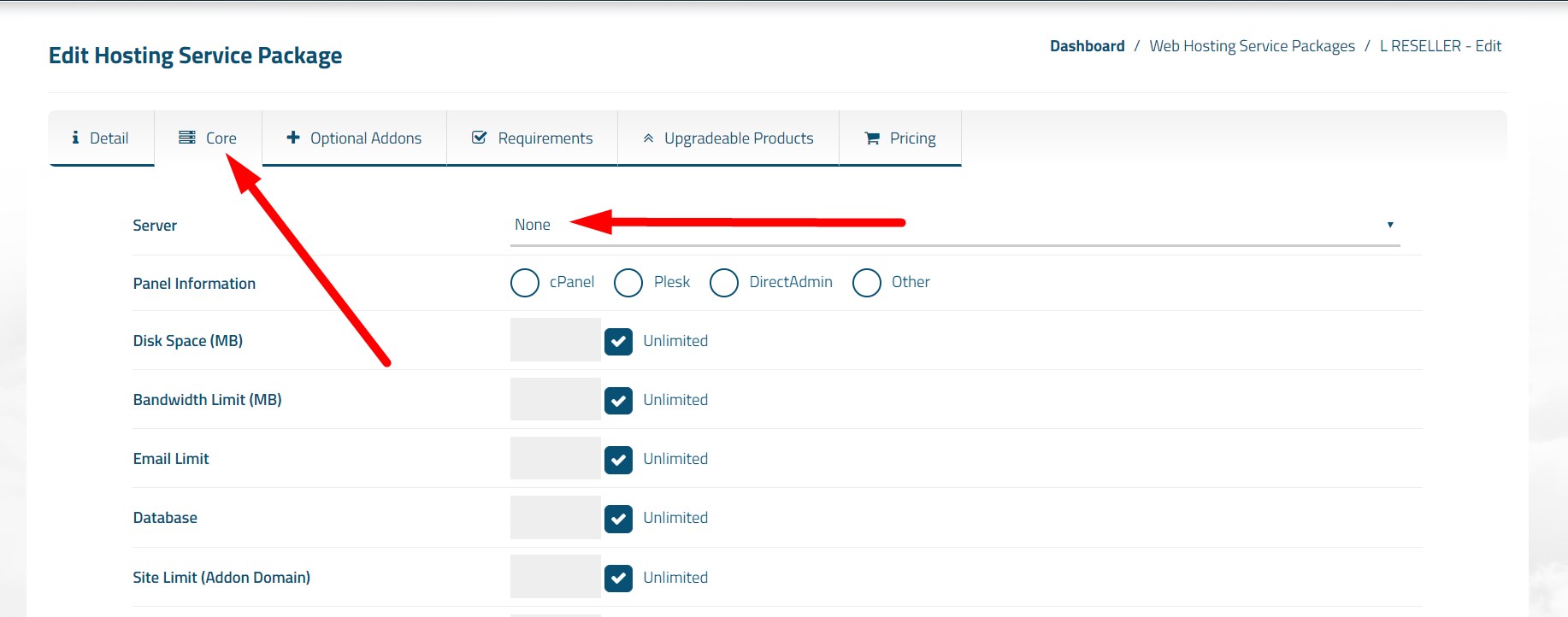
- Under "Choose A Hosting Plan" it will have you pick from the predefined packages in WHM. You can add or manage packages anytime in WHM. For more information check out this article: https://Let.com help center/hc/en-us/articles/360054897971-Basics-of-packages-in-WHM
You now are ready to start using WiseCP! If you have more questions we recommend referring to the official WiseCP documentation at: WiseCP Documentation

