There are several options for creating a new username in WordPress if you do not want to use its default login username. This article discusses the different methods on how to change the WordPress username.
Option 1: Via the WordPress Dashboard
This option will create an additional WordPress user since you cannot edit a username from within the WordPress Dashboard. If you do not wish to create an additional user, follow the instructions in the second option to edit your username through phpMyAdmin.
- Log in to your WordPress Dashboard
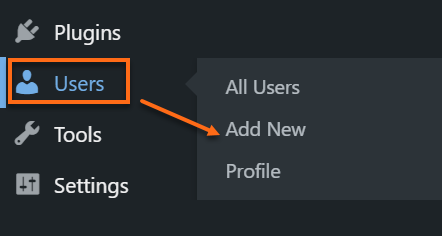
- Navigate to the Users sections, then click on Add New.
- You will be redirected to the Add New User page. Fill out the required information below.
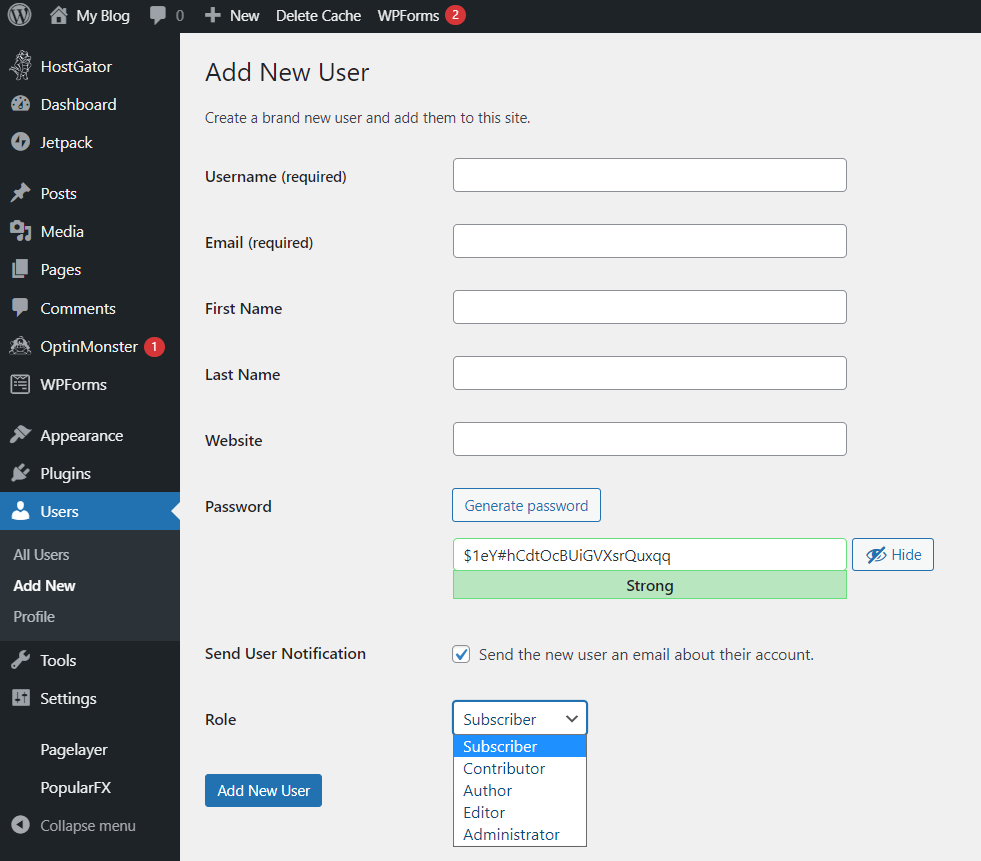
- Create a new Username.
- Enter your Email address.
- Complete the fields for first name, last name, and website.
- Create a new password and enter it in the next two fields.
- Check the box to Send Password to the new user via email.
- Select the role of the new user.
-
Click Add New User
Option 2: Via phpMyAdmin
To edit your WordPress login username in phpMyAdmin, find out which database is associated with the installation of WordPress that you wish to change; then follow the instructions below.
- Log in to cPanel.
- In the Files section, then click on the File Manager icon.
- Look for the wp-config.php file for the WordPress site that you want to change the username.
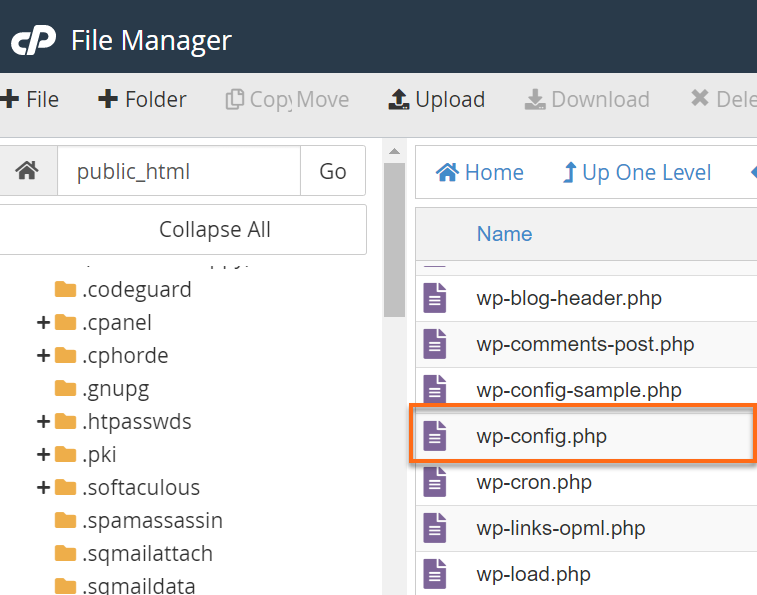
- Right-click and select View
- Take note of the database name. It will look similar to this:
define('DB_NAME', 'domain_wrdp1')
(Domain will be a prefixed form of the actual domain name or cPanel username being used.)
Go back to the cPanel homepage, then proceed with the following instructions
6. In the Databases section, click phpMyAdmin.
7. From the left-hand navigation menu, click on the appropriate database name from Step 5.
8.From the left-hand navigation menu, click wp_users.
9. In the table next to the database login information, click Edit.
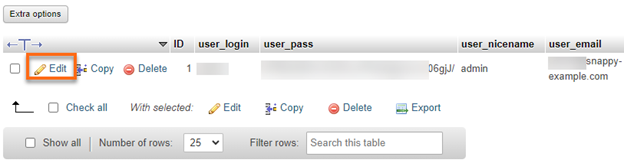
10. Locate the user_login column, click on your current username and change the name to something you prefer.
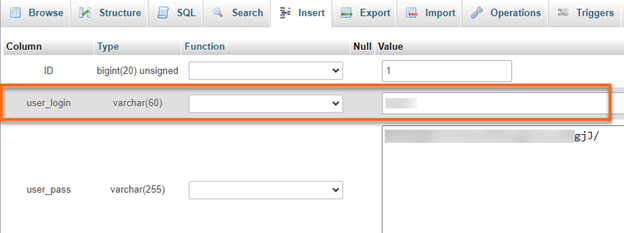
- Click Go.
You should now be able to log in to your WordPress site with your new username.
Option 3: Via Softaculous
- Log in to your cPanel.
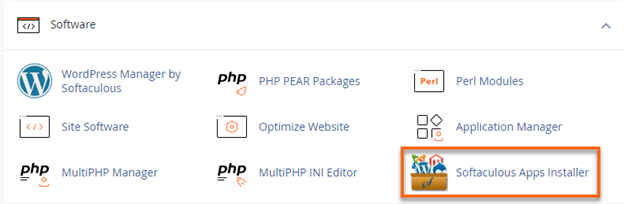
- Look for the Software section, then click on Softaculous Apps Installer.
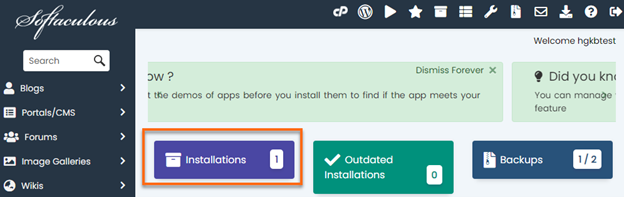
- This will open the Softaculous interface. At the top of the page, it will present you with options for your installed scripts. Click on the Installations box.
- Locate the domain you wish to update, then click the pencil icon.

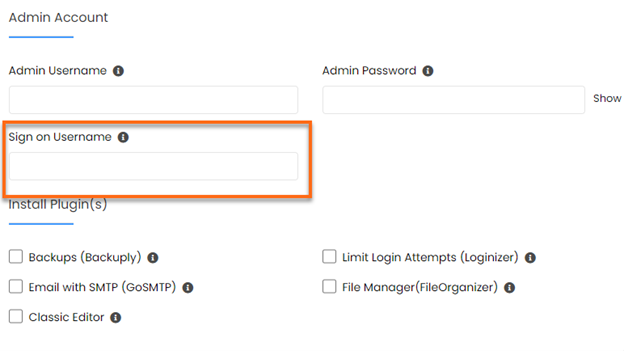
- Navigate to the Admin Account box, then enter the desired username in the Sign-on Username box.